Attendance and pairing restrictions
Temporarily omit absent students and create optional Prefer or Avoid rules for student pairs.
Mark students absent
- Open Groups and select the class.
- Tap Attendance.
- Swipe the roster vertically and turn off Present for absent students.
- Use Find student when the roster is long.
- Tap Done.
Add a Prefer or Avoid rule
- Open Classes and select the class.
- Tap Restrictions.
- Choose both students.
- Choose Prefer or Avoid, then tap Save rule.
| Rule | Meaning |
|---|---|
| Prefer | Weights the random process toward placing the pair together. |
| Avoid | Keeps the pair apart unless all restrictions make complete grouping impossible. |
Review configured rules
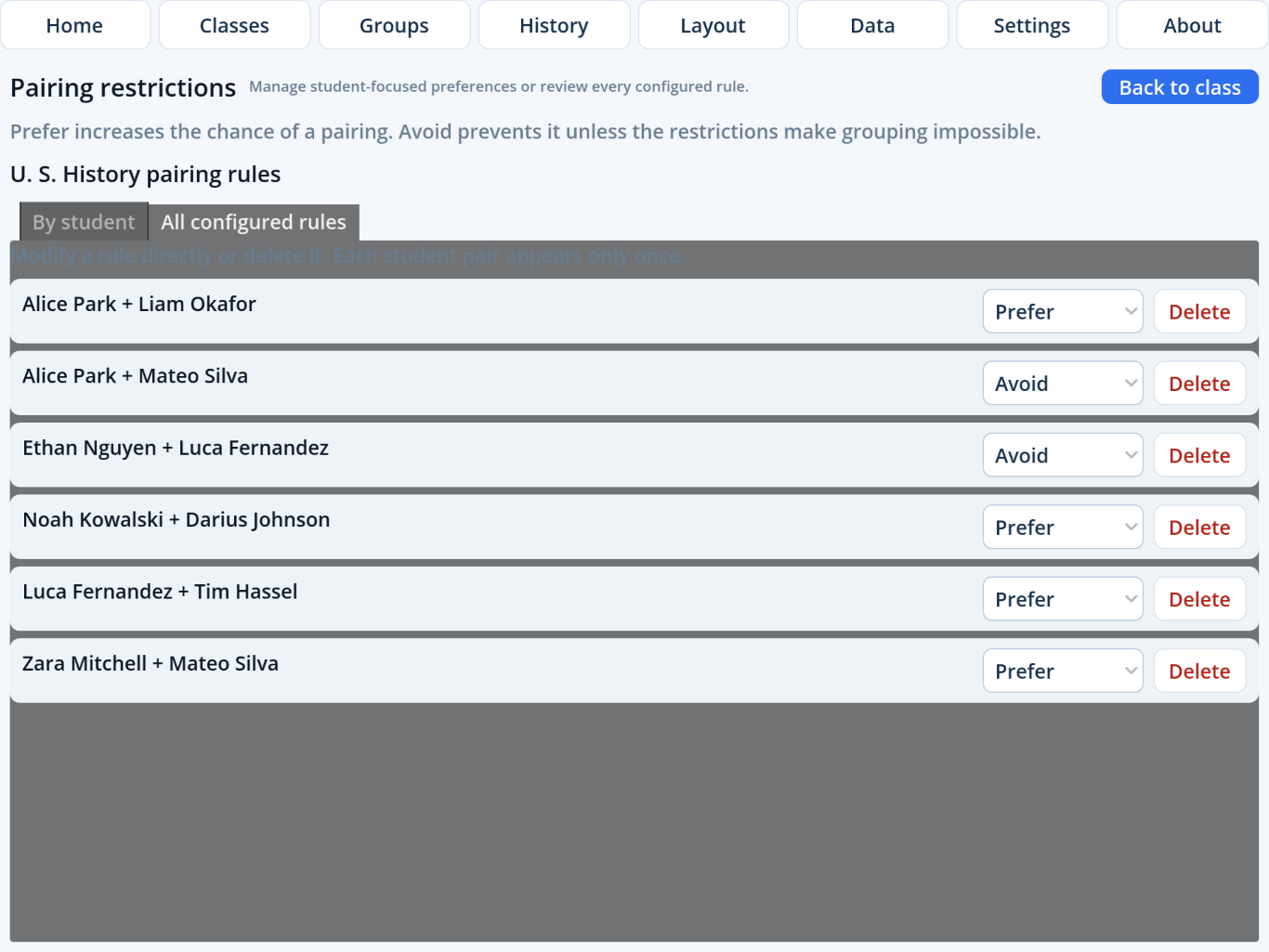
Use the student-focused view for rules involving one person. Use All configured rules to change or delete any saved pair directly. Each pair appears only once.
Understand and check constraints
If every Avoid rule cannot be honored, Super Picker creates complete groups by relaxing the minimum necessary exclusions and displays Check constraints. Review that result before using it.