Create random groups
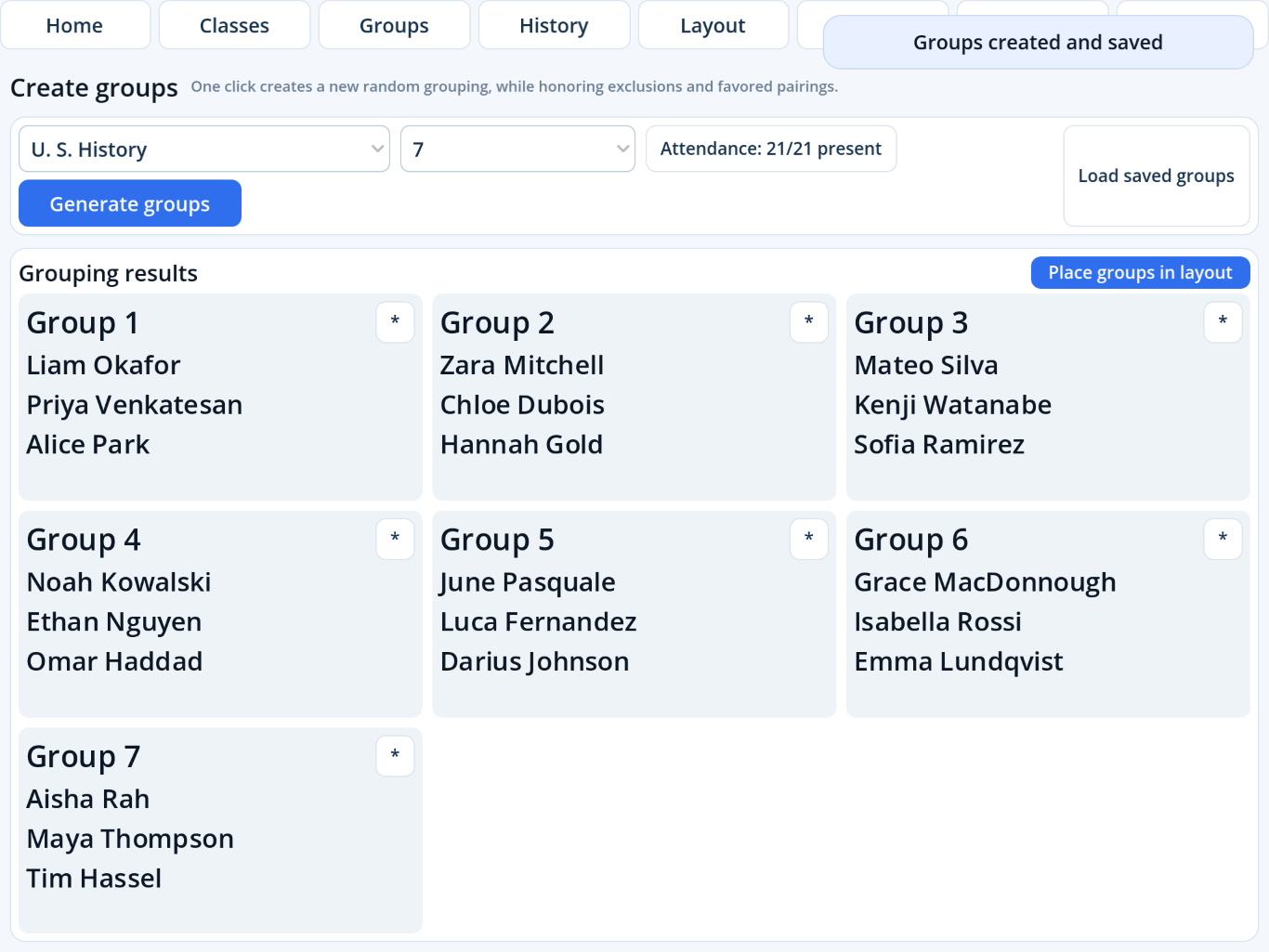
Select a class and group count, account for today’s attendance, and generate a fresh random grouping.
Generate groups
- Tap Groups in the top navigation.
- Choose the class.
- Tap Attendance if anyone is absent.
- Choose a valid number of groups.
- Tap Generate groups.
Tap Generate groups again whenever you want a different randomized result.
Review the group cards
Cards resize to use available width and height. An iPad may show several columns; an iPhone uses fewer columns and scrolls only when necessary.
Open group feedback
Tap the * in a group card. Add an optional rating, Prefer or Avoid for that complete group, and comments. The dialog stays within the current app window and keeps Cancel and Save feedback accessible.
Load saved groups
Tap Load saved groups or open History from the top bar. Filter and tap Load groups on the desired session. Loading an old result does not replace today's attendance choices.
Place groups in the room
Tap Place groups in layout. Choose a reusable layout or accept the default arrangement of rectangular tables in three columns with the room front at the top.