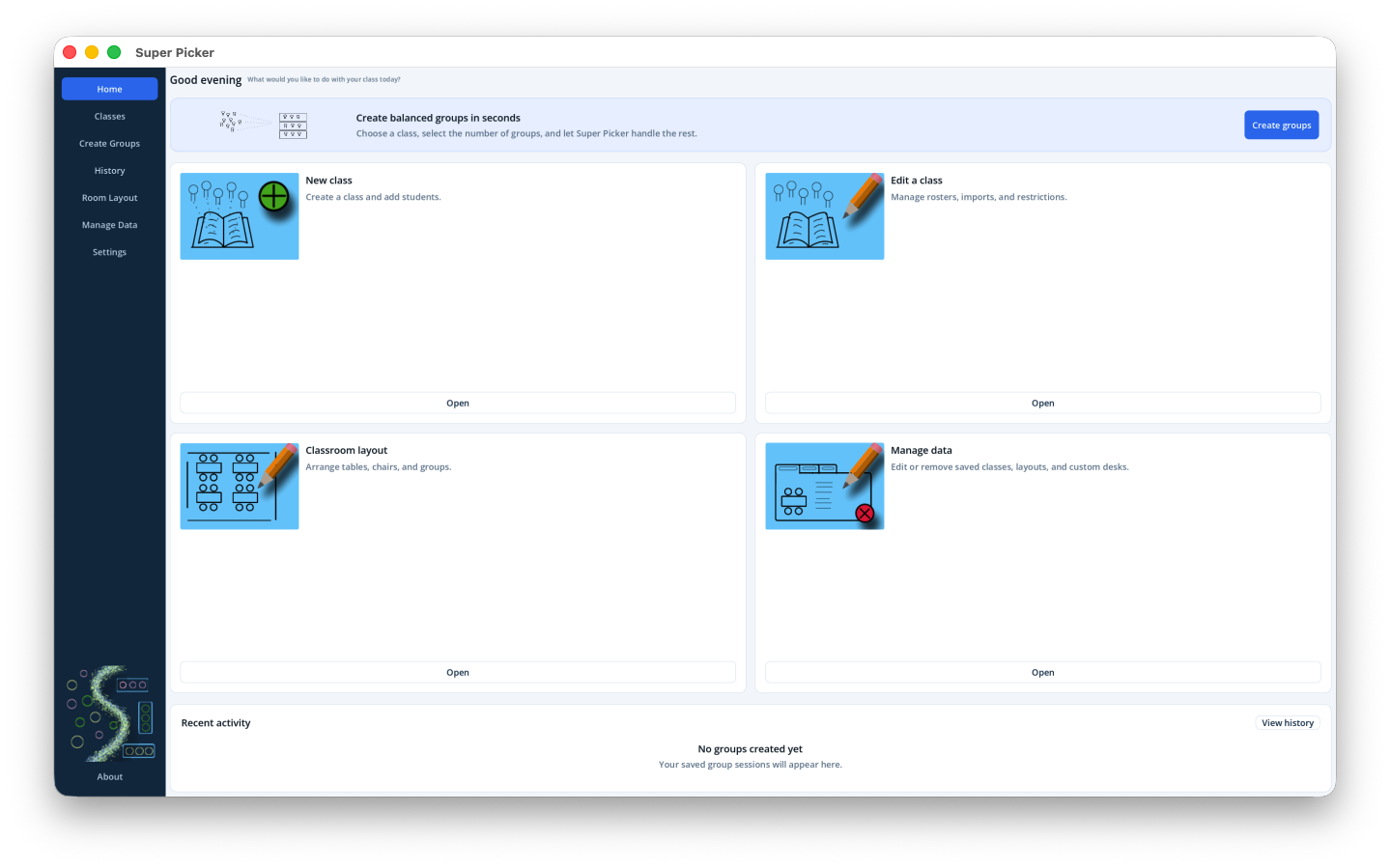
The desktop sidebar remains visible on the left. Select Home, Classes, Create Groups, History, Room Layout, Manage Data, or Settings. The About button at the bottom shows the installed version.
The sidebar is the quickest way to move among major tasks.
Your first classroom workflow
Select Classes, then New class.
Enter a class name. Period, block, and subject are optional.
Add students one at a time or import a CSV roster.
Select Create Groups, choose the class and number of groups, then select Generate groups.
Review the group cards. Select Place groups in layout to arrange them at tables.
Open History later to reload a saved grouping.
No manual save is required for groups.Every generated grouping is added to History. Class changes and saved layouts are stored in the local database.
Understand local saving
Super Picker stores classes, students, pairing rules, group history, feedback, room layouts, and custom tables in a local SQLite database. Use Manage Data to create a portable .superpicker backup.
Back up before major changes.Local data is not automatically synchronized through iCloud. Keep periodic backups in a location covered by your normal Mac backup routine.