Attendance and pairing restrictions
Temporarily omit absent students and optionally influence which students shouldor should not be grouped together.
On this page
Mark students absent
- Open Create Groups and select a class.
- Select Attendance.
- Turn off Present for each absent student. Use Find student to filter a long roster.
- Select Done. The valid group-count choices update for the present count.
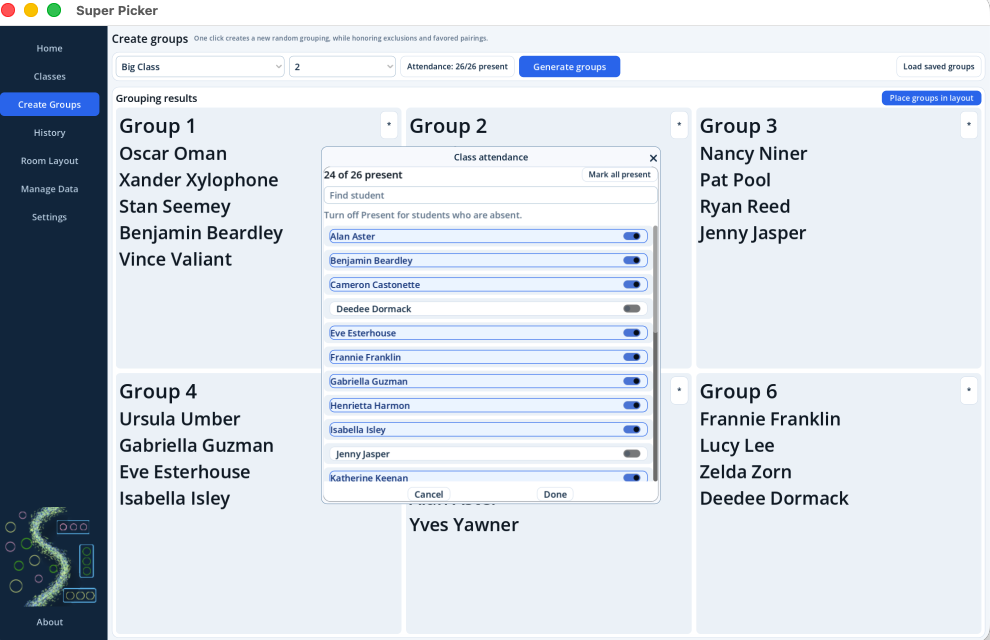
Attendance does not alter the roster
Attendance is remembered for the selected class during the current app session. It does not delete students, modify pairing rules, or overwrite the attendance snapshot stored with older group history.
Historical absences are preserved.Loading an old grouping shows who was absent then without changing today's attendance choices.
Create a Prefer or Avoid rule
- Open Classes and select the class.
- Select Restrictions.
- Choose a student, the other student, and either Prefer or Avoid.
- Select Save rule. Prefer and Avoid are mutually exclusive for a pair.
| Rule | Effect |
|---|---|
| Prefer | Increases the chance that the two students appear in the same group; it is not a guarantee. |
| Avoid | Prevents the pairing unless the full collection of exclusions makes grouping impossible. |
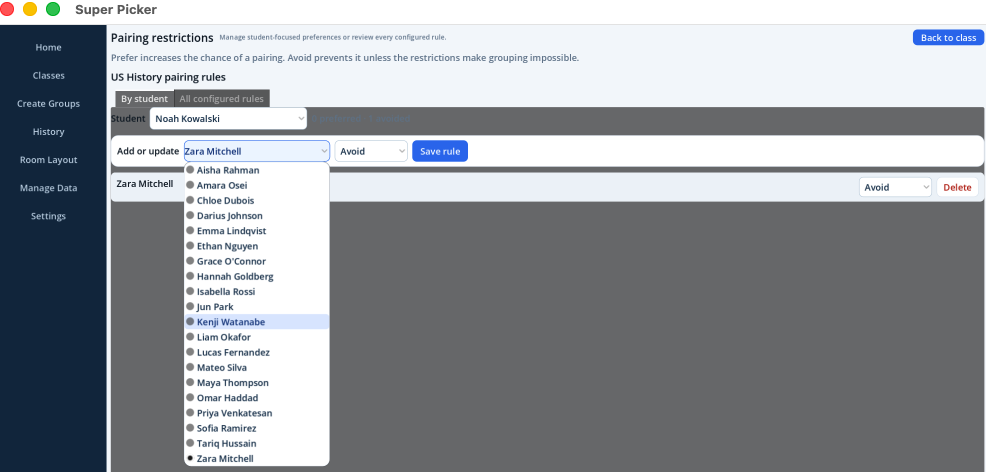
Review or remove configured rules
Use All configured rules to see every saved pair. Change a rule directly or select Delete. Use the student-focused view when you want to inspect rules involving one student.
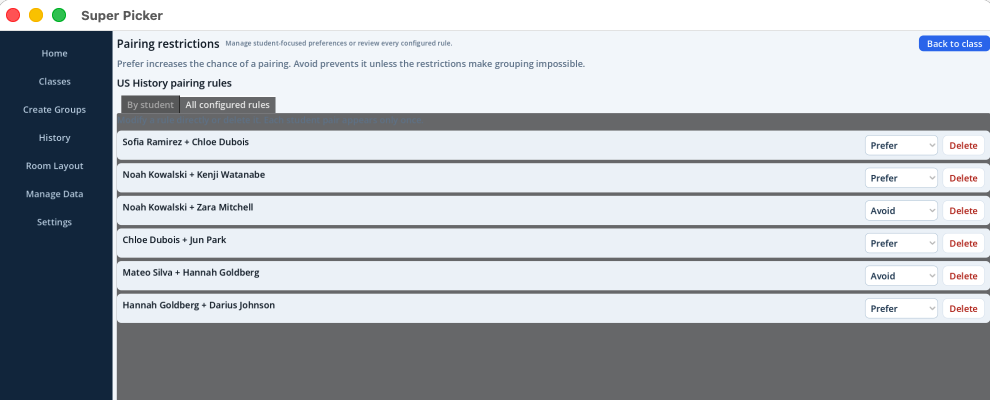
When "Check constraints" appears
Super Picker first attempts to honor every Avoid rule. If that would make a complete grouping impossible, it relaxes the minimum necessary exclusions and creates the groups instead of failing. The result and saved History row show Check constraints.
Review the rules before using that result.The warning means at least one excluded pairing may be present. It does not indicate lost data or an incomplete group.