Manage, back up, and restore data
Edit or remove saved records and create a complete portable backup of the local Super Picker database.
On this page
Edit or delete saved records
Open Manage Data. Classes, Classroom layouts, and Custom desks appear in separate lists.
- Edit opens the existing Classes, Room Layout, or custom table screen.
- Delete permanently removes the selected item after confirmation.
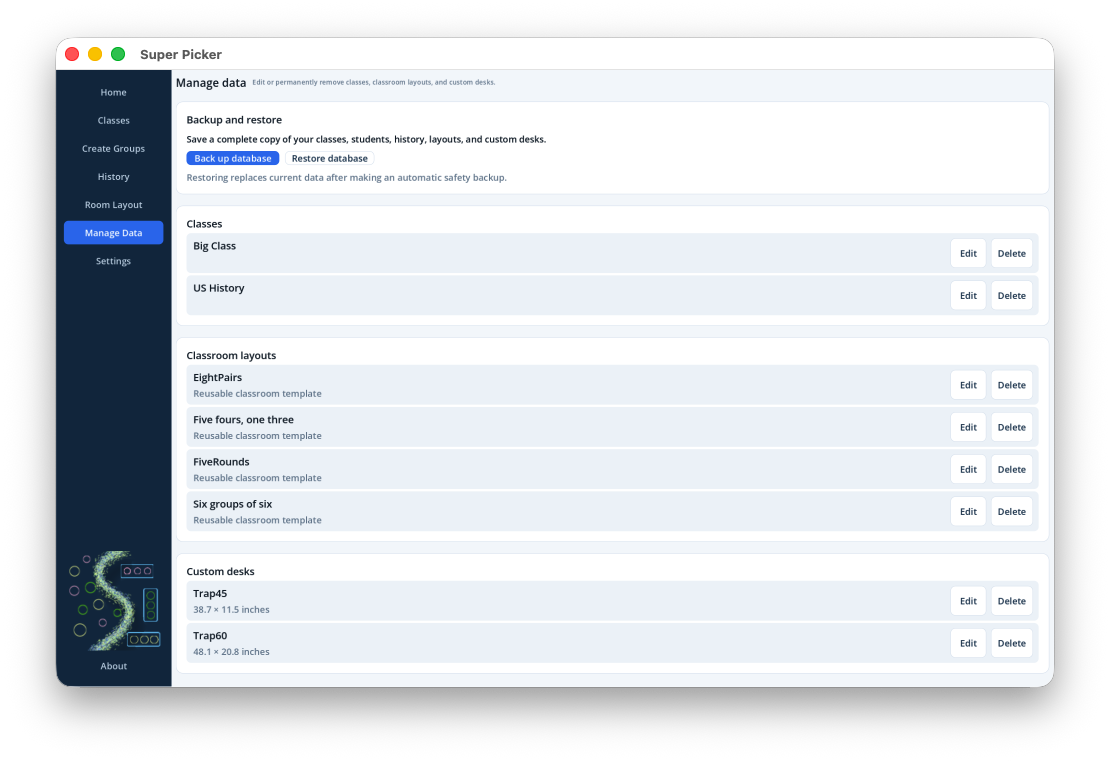
Back up the complete database
- Select Back up database.
- Choose a macOS folder in the save dialog.
- Enter a recognizable filename. Super Picker uses the
.superpickerextension. - Confirm the completion message before closing the app.
The backup includes classes, students, restrictions, attendance snapshots in history, saved groups, feedback, layouts, furniture sets, custom tables, and settings stored in the database.
Restore a backup
- Select Restore database.
- Choose a valid
.superpickerfile. - Read the replacement warning and confirm.
- Wait for validation and the completion message.
Restore replaces current data.Before replacing it, Super Picker automatically creates a timestamped safety copy of the current database. Keep your chosen backup file until you have verified the restored classes and layouts.
Database backup or CSV?
| Format | Contents | Best use |
|---|---|---|
.superpicker | The complete application database. | Disaster recovery, moving all data, or preserving a release-test snapshot. |
| Roster CSV | Names from one selected class. | Roster exchange with another application or spreadsheet. |
| Feedback CSV | The currently selected student, class, or all-feedback scope. | Reviewing or archiving observations outside Super Picker. |
Recommended backup routine
- Create a backup after initial class and room setup.
- Create another before large roster replacements or cleanup.
- Keep more than one dated backup outside the application's own data folder.
- Periodically test that a backup can be selected and validated.