Classes and student rosters
Create a class, choose how names appear, and add, import, edit, or remove students.
On this page
Create a class
- Select Classes in the sidebar.
- Select New class.
- Enter the required class name and any optional period, block, or subject.
- Choose First Last or Last, First.
- Select Create class. The Student roster panel becomes available.
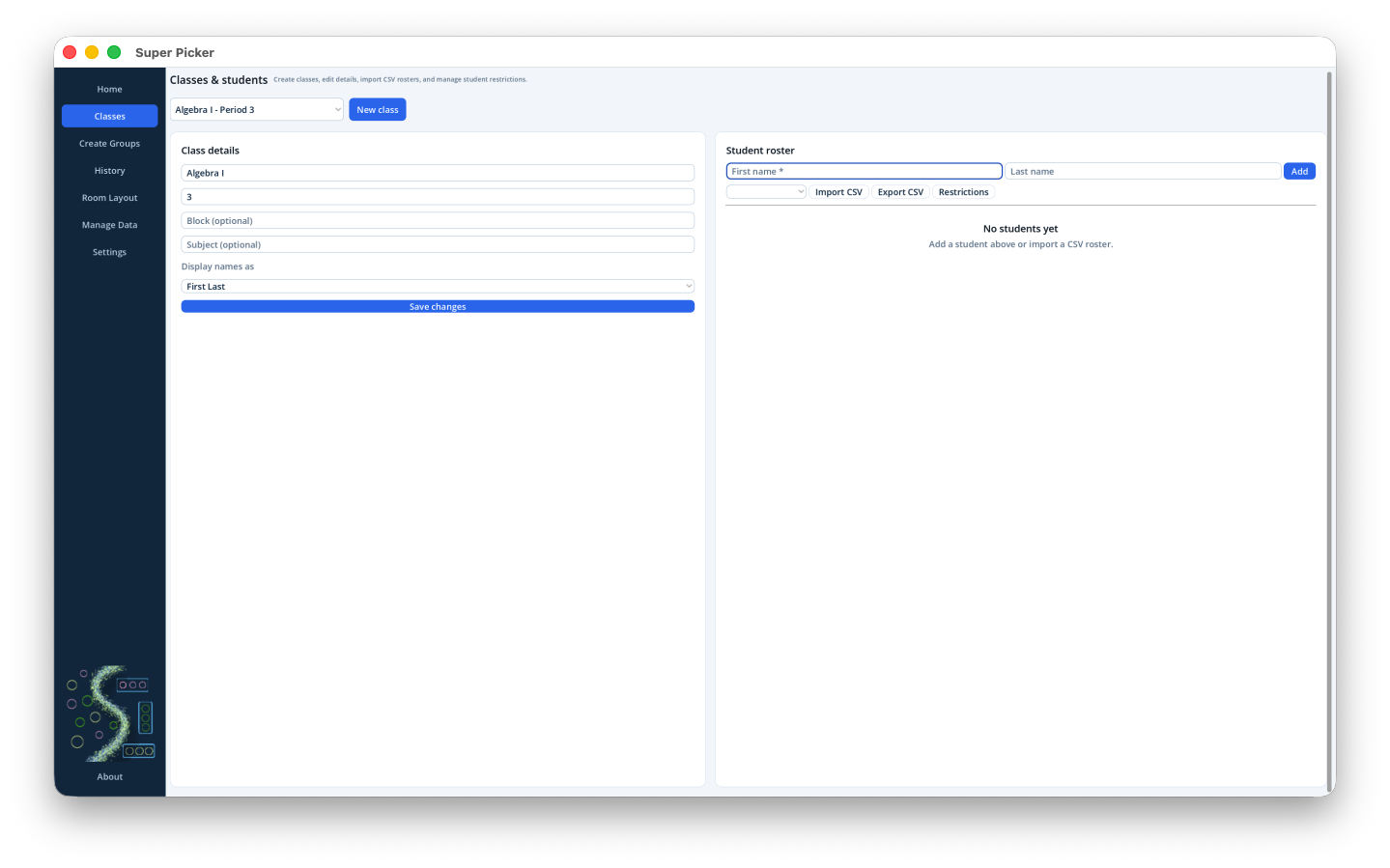
Edit class details
Select an existing class from the class list. Update any field or name-display order, then use the save action shown by the panel. Changing the display order does not alter student data.
Add and edit students
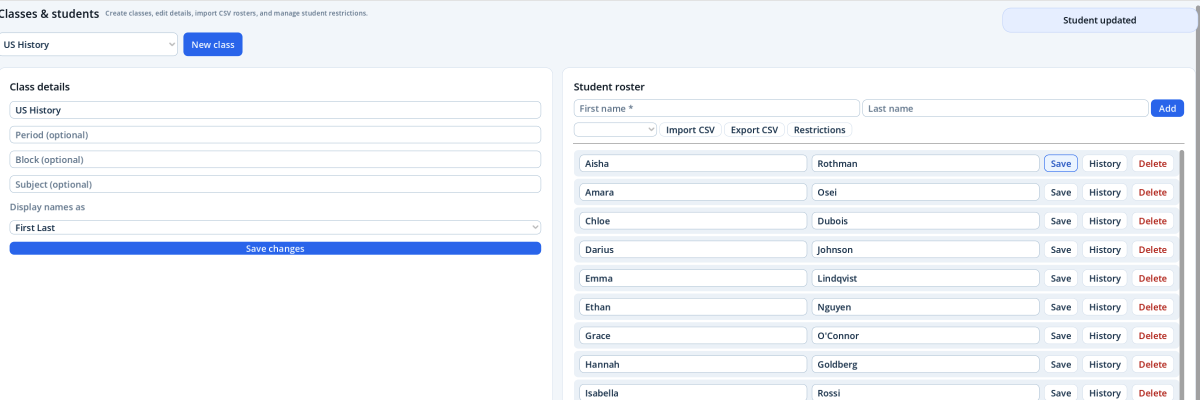
- Enter a first name and optional last name in the quick-add fields.
- Select Add.
- To correct a student, edit the row and select Save.
- To remove a student, select Delete and confirm when asked.
Only first name is required.Use enough of each name to distinguish students on group cards and seating labels.
Import or export a CSV roster
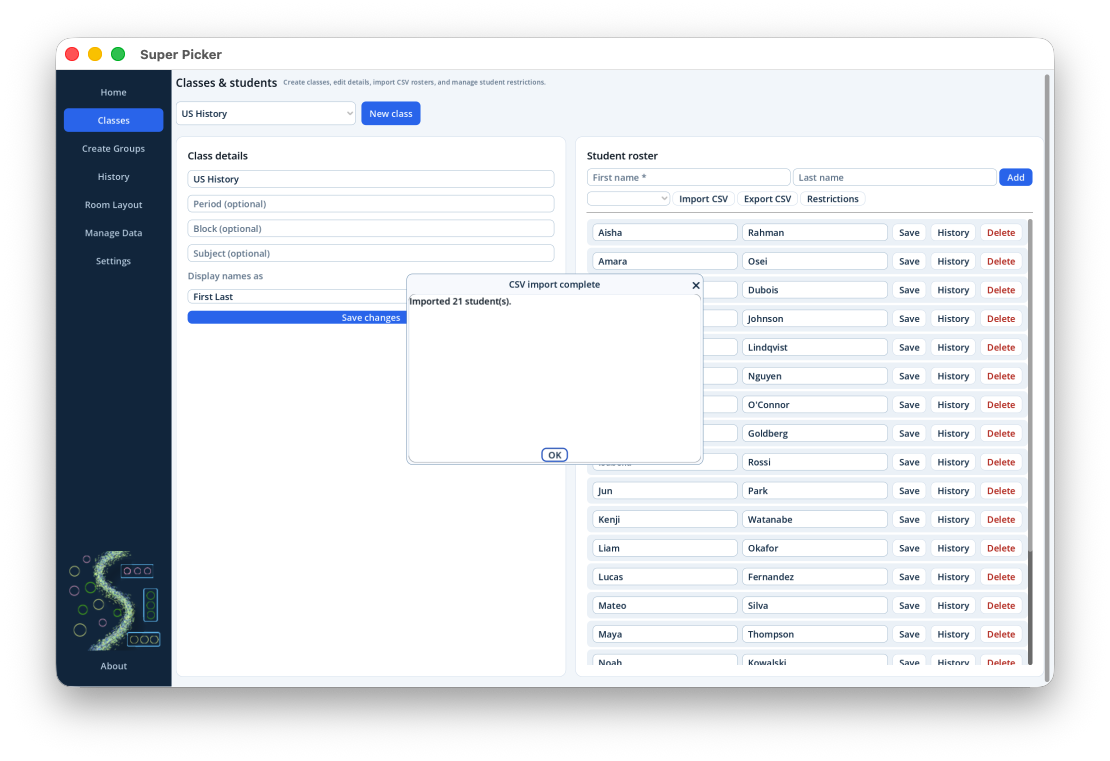
Import
- Choose Merge CSV to keep existing students, or Replace roster to remove them first.
- Select Import CSV and choose a file in the macOS file dialog.
- Review any duplicate warnings. Merge mode flags and skips duplicates.
A simple file with first-name and last-name columns is sufficient; last names may be blank.
Export
Select Export CSV, choose a folder and filename, and save. This exports only the selected class roster, not the full database.
Replace is destructive.Create a database backup first when replacing a roster that already has history or carefully configured rules.
Open a student's feedback history
Select History on a student row. From the feedback screen you can review that student, the entire class, or all feedback, and export the visible scope to CSV.