Getting started
Use the touch-friendly top navigation to create a class, generate groups, and place them into a room layout. Super Picker saves its database locally on the device.
Use the top navigation bar
On iPhone and iPad, Home, Classes, Groups, History, Layout, Data, Settings, and About appear in a horizontally scrolling bar. Swipe the bar sideways when an item is beyond the screen edge.
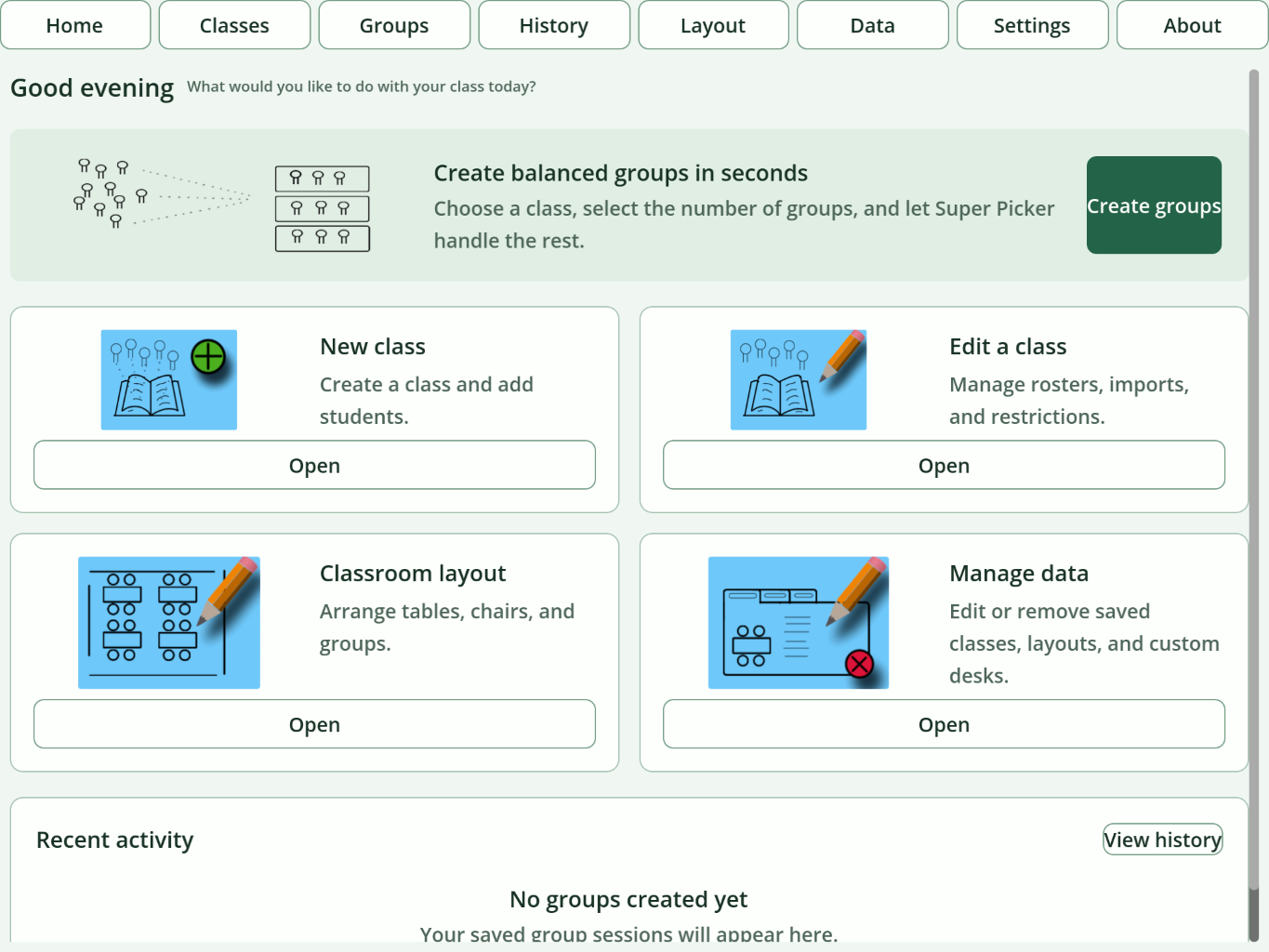
Your first classroom workflow
- Tap Classes, then New class.
- Enter a required class name and add students or import a CSV roster.
- Tap Groups, choose the class and number of groups, and tap Generate groups.
- Review the cards, then tap Place groups in layout.
- Choose a saved layout or use the generated default.
Generated groups save automatically.Use History to reload an earlier result.
Touch basics
- Tap controls once; avoid double-tapping action buttons.
- Drag tables, chairs, and walls directly.
- Drag an empty part of the room canvas to pan it.
- Use Select multiple before tapping several layout objects.
- Swipe inside lists and help panels to scroll; begin the gesture away from small draggable layout items when possible.
Understand local data
Classes, history, feedback, and layouts remain in the app’s local container. They do not automatically synchronize between an iPhone, iPad, and Mac. Use Data → Back up database, then choose Save to Files or another destination from the iOS Share sheet.
Back up before deleting the app.Removing an iOS app can remove its local database. Keep a recent backup in iCloud Drive or another Files location.