Manage, back up, and restore data
Use the iOS Share sheet to keep a portable copy of every class, grouping, feedback record, and layout.
Edit or delete records
Tap Data in the top navigation. Classes, Classroom layouts, and Custom desks each have Edit and Delete actions. Delete requires confirmation.
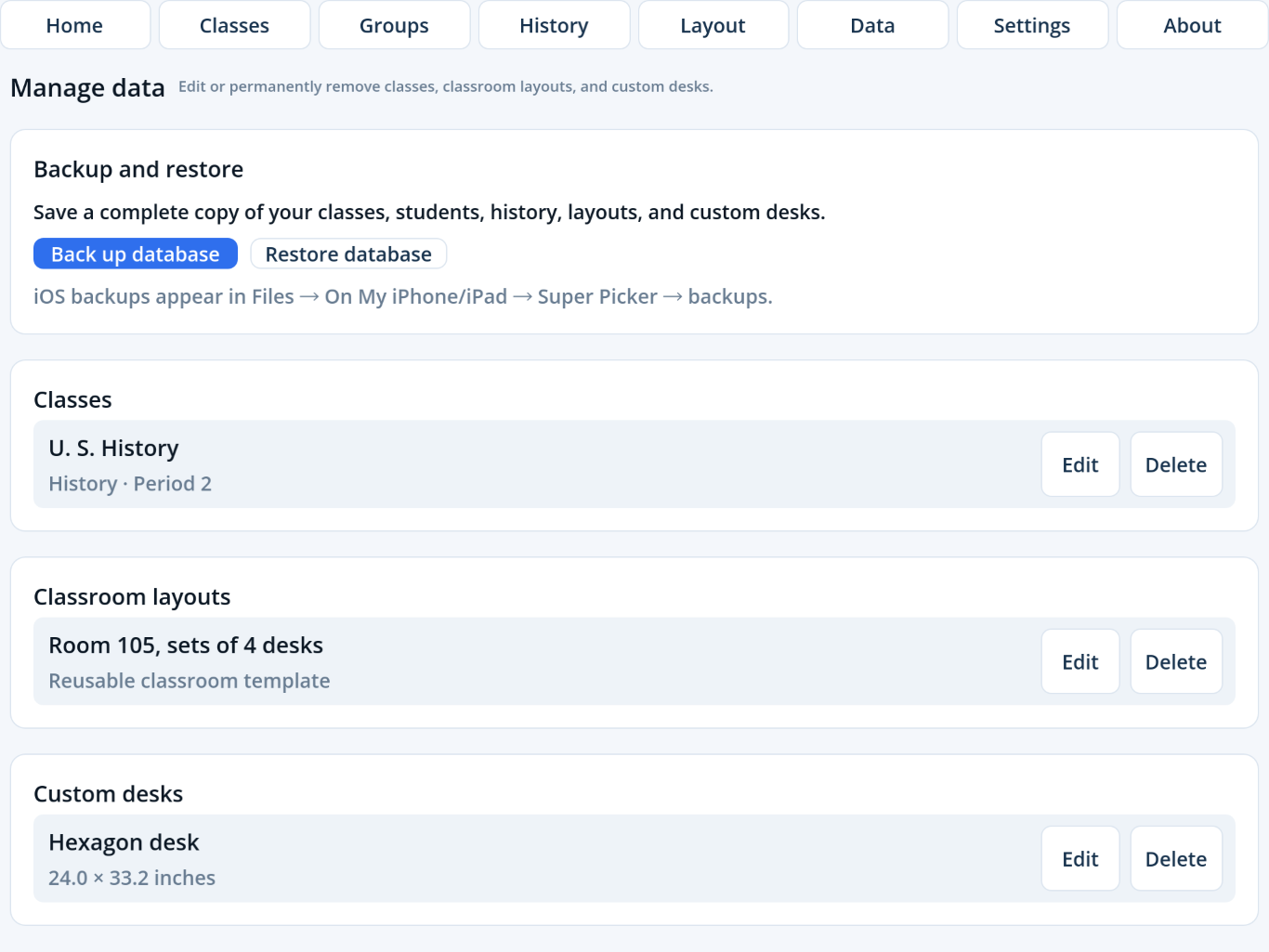
Back up with Share
- Tap Back up database.
- When the iOS Share sheet opens, tap Save to Files to choose iCloud Drive, On My iPhone/iPad, or another enabled provider. You can also use AirDrop, Mail, or another available sharing app.
- Choose a destination and complete the share.
Super Picker creates the .superpicker file before opening Share. A database backup contains the entire application data set, not merely the selected class.
You can share your data between devices by backing up to a shared location and restoring on the other device.
Restore a backup
- Tap Restore database.
- Use the native Files picker to choose a valid
.superpickerfile from iCloud Drive, On My iPhone/iPad, or another enabled provider. - Confirm that current data will be replaced.
- Wait while Super Picker validates and reopens the restored database.
Database backup vs. CSV
| File | Purpose |
|---|---|
.superpicker | Complete backup and restore of all app data. |
| Roster CSV | Import or export names for one class. |
| Feedback CSV | Export the selected student, class, or all-feedback view. |
Roster import opens the native Files picker. Roster and feedback exports open the native Share sheet, where you can save to Files or send the CSV to another app. CSV files cannot restore layouts, saved groups, preferences, or the complete database.