Custom tables and furniture sets
Create one polygon-shaped tabletop or combine several positioned tables and chairs into a reusable set.
Design a custom table
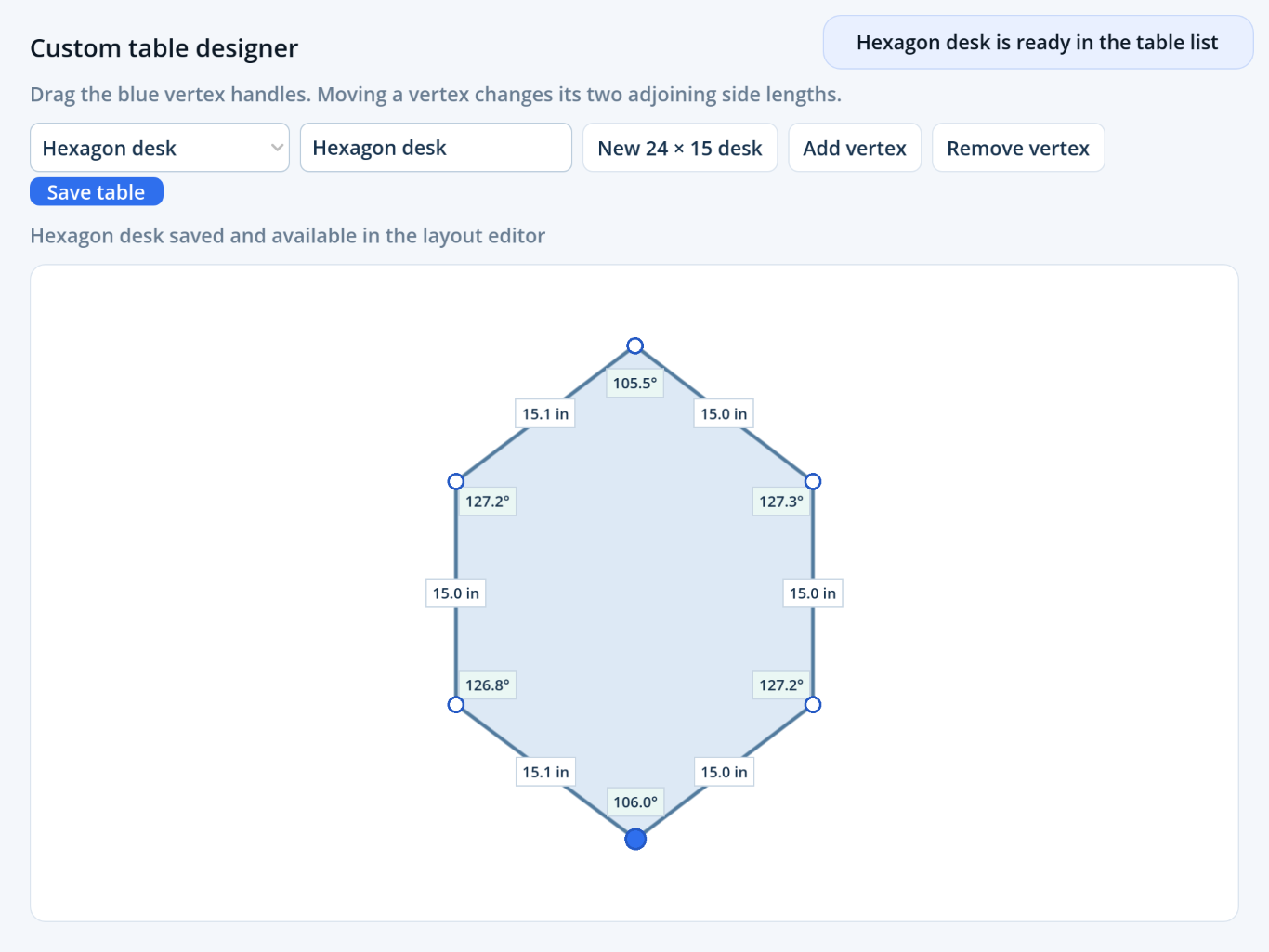
- Open Layout: Tables and tap Design table.
- Start from the 24 by 15 inch desk.
- Drag blue vertex handles; use Add vertex or Remove vertex as needed.
- Review the side-length and angle labels.
- Name and save the table, then return to the layout.
Create a furniture set
- Position and rotate each table and its chairs.
- Open Selection and enable Select multiple.
- Tap each table in the arrangement.
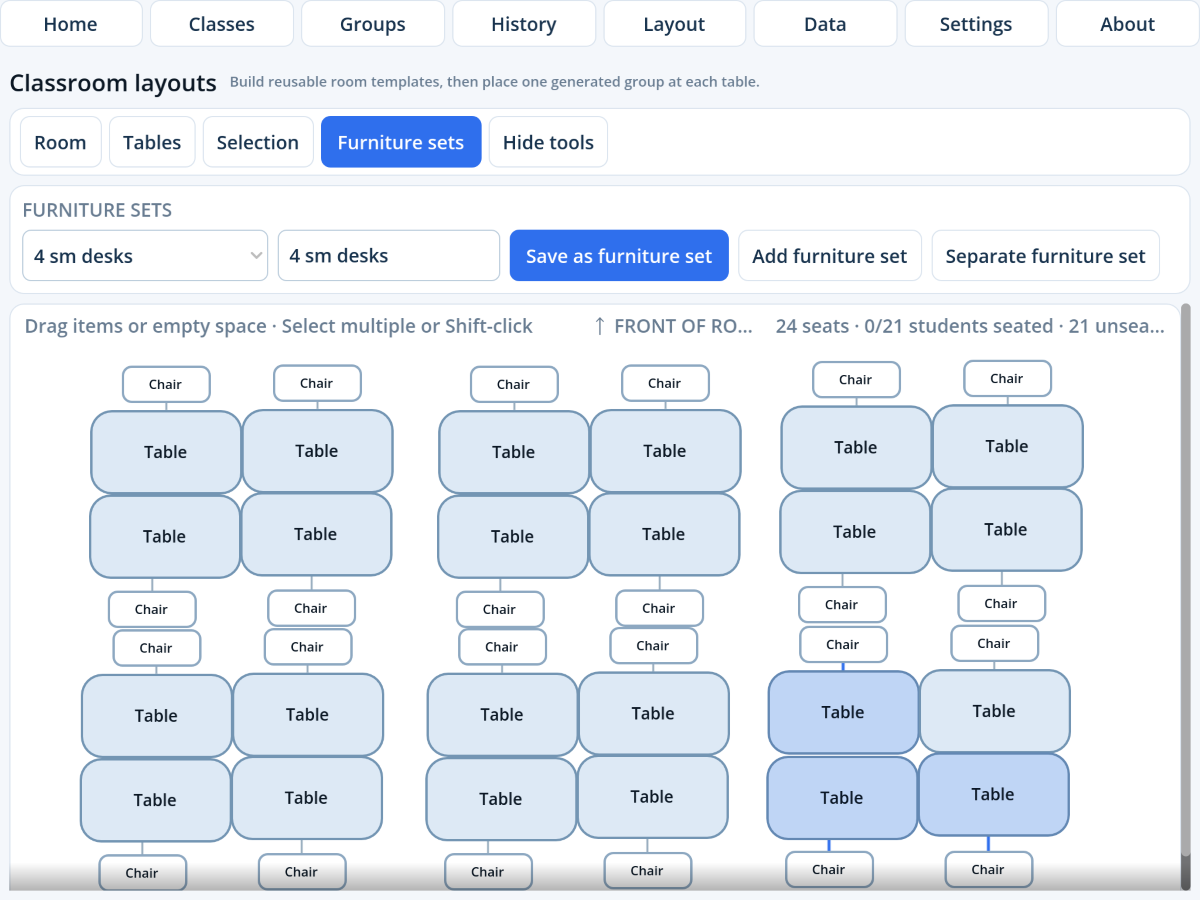
- Open Furniture sets, enter a name, and tap Save as furniture set.
Associated chairs, rotations, and relative positions are automatically adjusted.
Add or separate a saved set
Choose the saved arrangement and tap Add furniture set. Dragging a single table moves the complete set. Select it and tap Separate furniture set when each table should move independently.
Understand seating capacity
All chairs in the furniture set combine into one seating destination for a group. Three one-chair desks saved together accept one three-student group. Or, you can use one large table with four chairs for a four-student group. Combine tables and chairs to make whatever grouping capacity you need.