Create random groups
Choose a class and group count, account for today’s attendance, and create a new randomized grouping with one click.
Generate groups
- Select Create Groups.
- Choose a class.
- If necessary, select Attendance and mark absent students.
- Choose the number of groups. Available values range from 2 through half the number of present students.
- Select Generate groups.
Every click performs a new random generation. Pairwise rules and exact-group feedback influence the result but do not make it repeat a previous arrangement.
Read the results
Each card shows a group number and its members. Cards expand to use the available panel size and increase their text when space allows. A scrollbar appears only when all groups cannot remain legible.
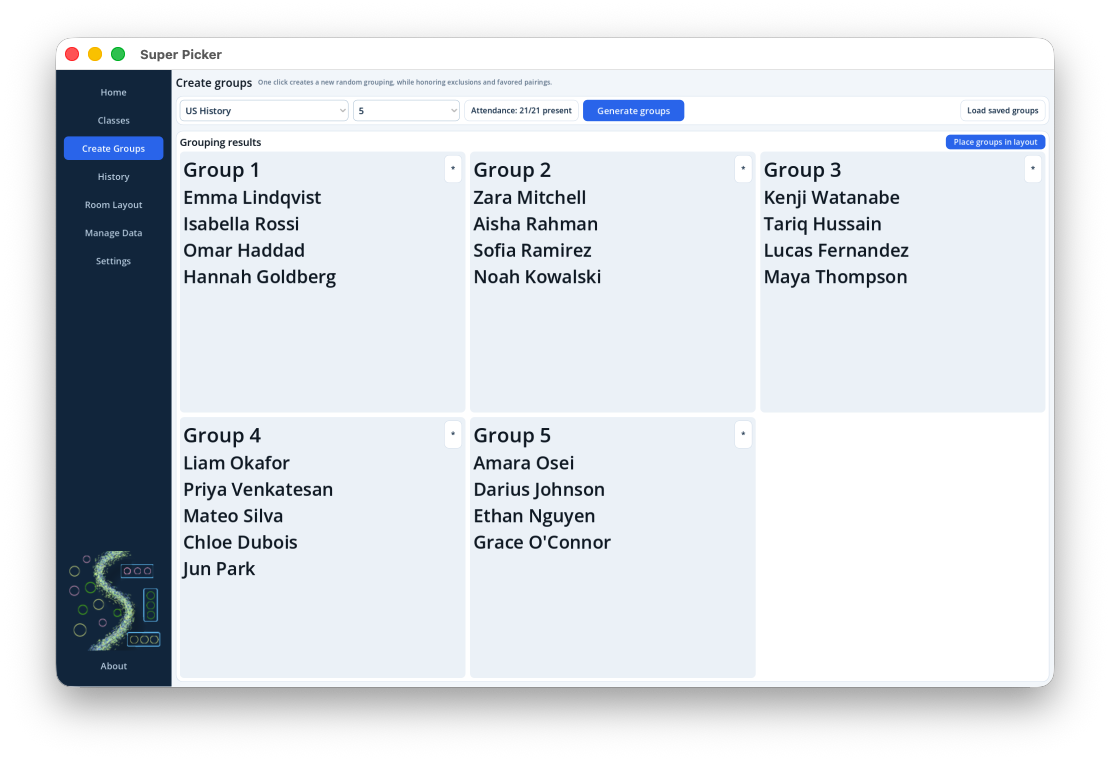
Record feedback from an active group
Select the * in a group card. Add an optional one-to-five-star rating, Prefer or Avoid for that complete group, and a dated comment. Feedback is independent from group history and remains available if the saved session is deleted.
Load saved groups
Select Load saved groups or open History. Filter by class, date, or search text, then select Load groups. A loaded session returns to the Create Groups panel without changing the current attendance checklist.
Place groups in a classroom layout
Select Place groups in layout. Choose a saved room layout or use the generated default: the room front is at the top and rectangular tables are placed in three columns. Each student group is assigned to one seating destination.